
Using AI to Create Interactive Content
increase user engagement with visual content

If you use Claude or ChatGPT, you’ve probably already seen Artifacts or Canvas at work - standalone content that can be edited, embedded, revised, or shared - for example, a grading rubric or a project outline. In this post we’re going to examine a number of use cases for Claude Artifacts and ChatGPT Canvas based on content from previous posts in my blog. But first…
Rick’s AI Express
Of note in the past week:
UK universities report that 92% of students are using generative AI, and they recommend that staff “stress test” their assignments. Good idea for all of us!
In related news, 26% of teens (13-17 years old) are regularly using AI in their schoolwork, double from last year.
US courts continue to weigh in on what constitutes “fair use” in training AI models, with a decision in favour of Thompson Reuters regarding copyright infringement. This has implications for future training of AI models.
US courts also blocked Elon Musk’s lawsuit against OpenAI, which hoped to block OpenAI from becoming a for-profit organization (rather than JUST a “public benefit” corporation - like Anthropic).
Anthropic (Claude) has received new investment and is now valued at $61.5 billion. For comparison, here are other companies with the same valuation; however, these companies produce actual stuff: Activision, Honda, Uber, Colgate-Palmolive, and Estee Lauder. Crazy times!
And lastly, GM just hired its first Chief AI Officer, which indicates a desire to ramp up AI technologies across the company.
AI-Powered Interactive Elements
AI is transforming the way we create visual and interactive features like tables, charts, infographics, images, and more. If a picture is really worth a thousand words, imagine the value of adding interactive elements to your assignments or projects. Tools like Claude Artifacts and ChatGPT Canvas are leading this revolution, offering users a more efficient and engaging way to build dynamic user experiences.
AI-powered tools can generate complex, interactive content with ease, making them a game-changer for anyone who wants to add visual or informational components that not only enhance user experience but also simplify the process of content creation. By using AI to create interactive components, educators can focus on more strategic aspects of the teaching-learning process, rather than on layout, visual appeal, and user engagement. Let’s dive into this.
Claude Artifacts: A Powerful AI Tool
Claude Artifacts is a free and powerful tool that uses AI to create a wide range of interactive elements, from calculators and quizzes to data visualizations. Artifacts allows teachers (and students) to describe their objectives in plain language, and the AI translates those descriptions into functional objects that can be embedded in a web page or inserted as a link in a blog or LMS platform (see below). It's a straightforward and efficient way to build interactive components, though my experience has shown that it can take several kicks at the can to get what you want. The beauty of Artifacts is that they are standalone components that exist outside of the chat context: they can be shared, edited, and reused. You can see examples at MadeWithClaude and some of mine below.
ChatGPT Canvas: Collaboration in Writing and Coding
ChatGPT Canvas combines AI with real-time editing and feedback. This feature allows developers to work side-by-side with the AI, enhancing the writing or coding process with instant suggestions and improvements. It's an excellent tool for both solo developers and teams looking to streamline their workflow. In my experience, Canvas is a better tool for generating actual content (rubric, assignment template, programming code) than Artifacts. I was unable to find a collection of user-generated Canvas examples, but I have generated some below. Perplexity tells me that Canvas is the more complete and full-featured tool, but my experience has not shown that to be true.
Other AI Tools for Interactive HTML Creation
Beyond Claude and ChatGPT, other AI tools are able to help create interactive elements. Platforms like Curipod (free version available) use AI to create engaging, interactive content that enhances learning; I have also used NotebookLM to create interactive elements, though that process requires more technical knowledge than the benefit gained, in my opinion. And don’t forget that you can use AI to generate images; there are lots of ways to increase student engagement and to have students supercharge their projects. And, while this post is targeted to teachers, the content is VERY applicable to students using AI in their work.
Here’s an example of a way to increase user engagement based on the previous paragraphs: add an element that is interactive and that breaks from the monotony of text that causes eyes to glaze over.

Practical Applications
Here are some applications of AI-generated interactive HTML elements:
Web Development: Create complex interactive components without extensive coding knowledge. Like a mockup of a website for a potential client - get the look and feel without spending hours fighting with HTML code or WordPress.
Product or App Development: use for prototyping to show the user experience without investing a lot of time in UI/UX design and coding
Education: Develop engaging online courses with interactive quizzes and simulations. Add visuals, reviews, rubrics, and more.
Business: Use AI-generated interactive product demos and data visualizations to enhance customer engagement. Things like tables and graphs that users can manipulate.
Getting Started with AI-Generated Interactive Elements
To begin using these AI tools, follow these steps:
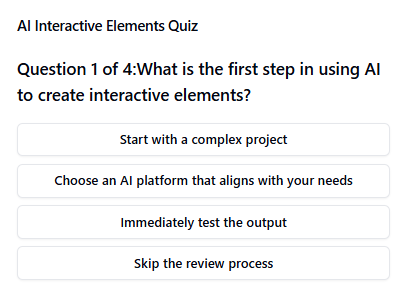
Choose Your Tool: Select an AI platform that aligns with your needs, such as Claude Artifacts or ChatGPT Canvas. I suggest starting with Claude, as I find it can create a wider range of content.
Start Small: Begin with a simple project to get familiar with the tool. Like an infographic or a quiz on the previous section.
Be Specific: Clearly describe what you want to create. Infographic, graph, flowchart, mind map, dashboard, single HTML page, etc.
Review and Refine: Check the generated code and make any necessary adjustments. If you get errors, feed those back into the AI and let the program resolve any issues - this usually works.
Test and Iterate: Test your creation and refine it based on feedback.
Challenge your Students: Give an essay, news article, or short story and have them create interactive elements (quiz, images, review) to increase reader engagement.
And a quick review of the previous steps is achieved by asking for an interactive quiz!
Artifacts and Canvas Examples
Here are several interactive elements I made based on previous blog posts. I ran into a problem where the feature would not run properly in my Chrome browser until I disabled some extensions; however, you can also run in an incognito window. Note that none of these took more than 10 minutes to make, and I did nothing to enhance the visual experience - colour, layout, images, etc. With a bit of prompt or code editing, you can greatly improve the look and content. Click on any link and the interactive element will open in a new tab.
From Claude Artifacts:
AI Companion Selector - allows the teacher to select an AI companion for student use, based on a variety of factors.
NotebookLM quiz - quiz based on the post from Oct 2024
Periodic Table elements - choose the correct name for each element
Changes to Provincial Population in Canada - comparison line graphs (for provinces, not territories)
And from ChatGPT Canvas:
Interactive Timeline for Indigenous Relations in Canada - list of significant dates
Infographic on Generating AI Images - easier for students to follow than a long blog post
AI in Career Choices - how student career choices are impacted by Generative AI
And here’s an infographic I created for the post on using Gemini to manage Google Workspace productivity. Nothing fancy, but with a bit more effort it could be very useful.
Conclusion
AI-powered interactive HTML elements are great features that make text-based content it more accessible and visually appealing. Whether you're a seasoned AI user or just starting out, Artifacts or Canvas can help you increase user engagement with ease. So, go ahead and explore these innovative tools – you might just discover a new way to bring your assignments to life! If you have use cases for Canvas or Artifacts, let me know how they enrich your classroom.
That’s all for now,
Cheers,
-Rick